

How to Use the Refunded Orders List
Aktualisiert am 2. Oktober 2026
The Refunded orders list shows every order behind the refund total on your dashboard for the selected date range. Use it to check which orders were refunded, how much money went back to customers, how much product cost came back into stock, and to correct an item that was marked wrongly in Shopify.
Find the List on the Dashboard#
The list has no page of its own in the menu. It opens from the refund figures on the Dashboard of a shop or a dashboard view, in two places. First pick the date range you want to check at the top of the dashboard: the list always covers the selected range.
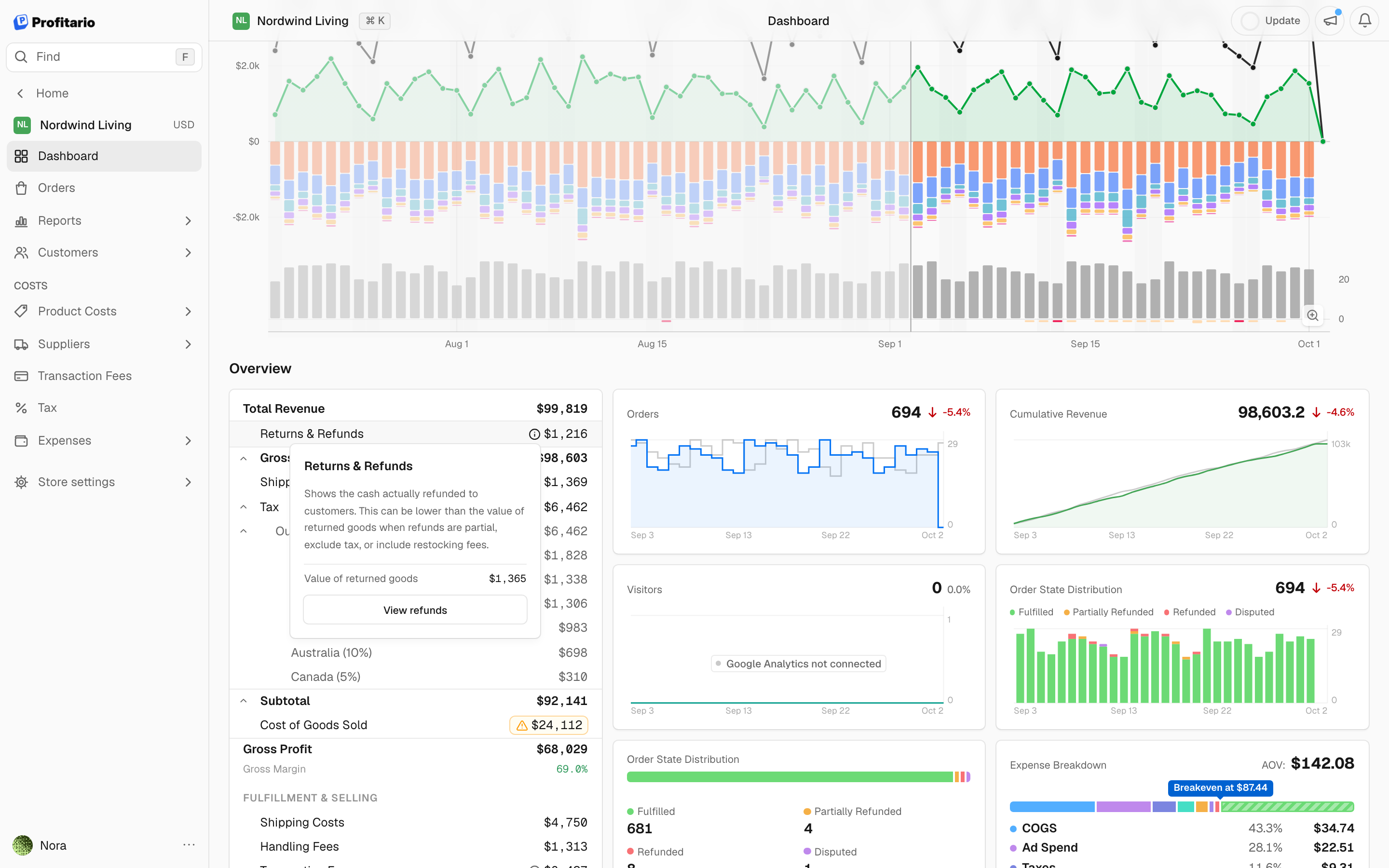
From the profit breakdown. The breakdown is the first card in the Overview section, right below the chart.
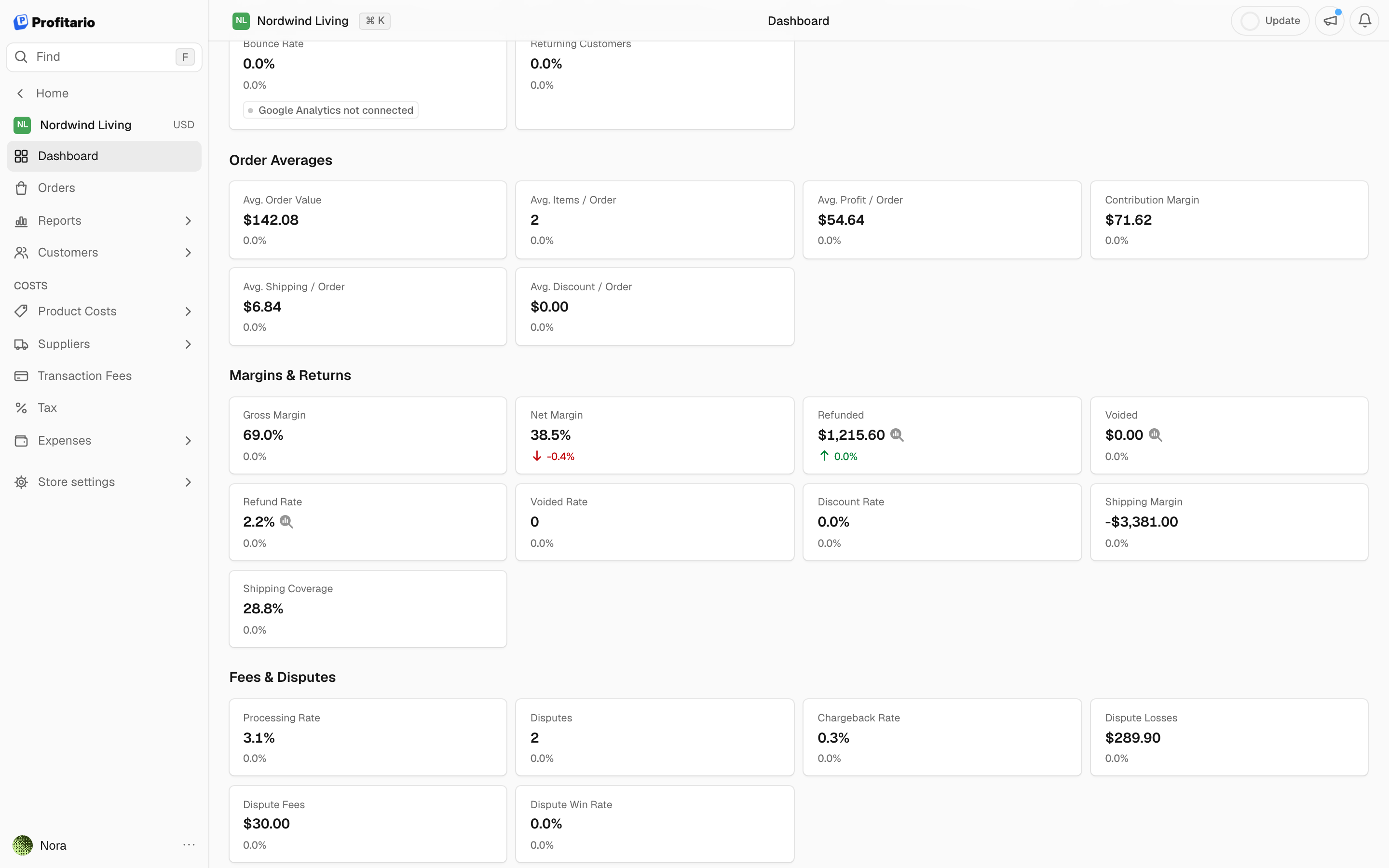
From the refund cards. Scroll down to the Margins & Returns section. Cards that open a list show a small magnifier icon next to their value. On a phone or tablet, use these cards, because the info icon in the breakdown needs a mouse pointer.
The list opens on top of the dashboard. Its total at the bottom matches the refund amount on the dashboard for the same date range. Click Export to download the list as a CSV or Excel file.
What Each Column Means#
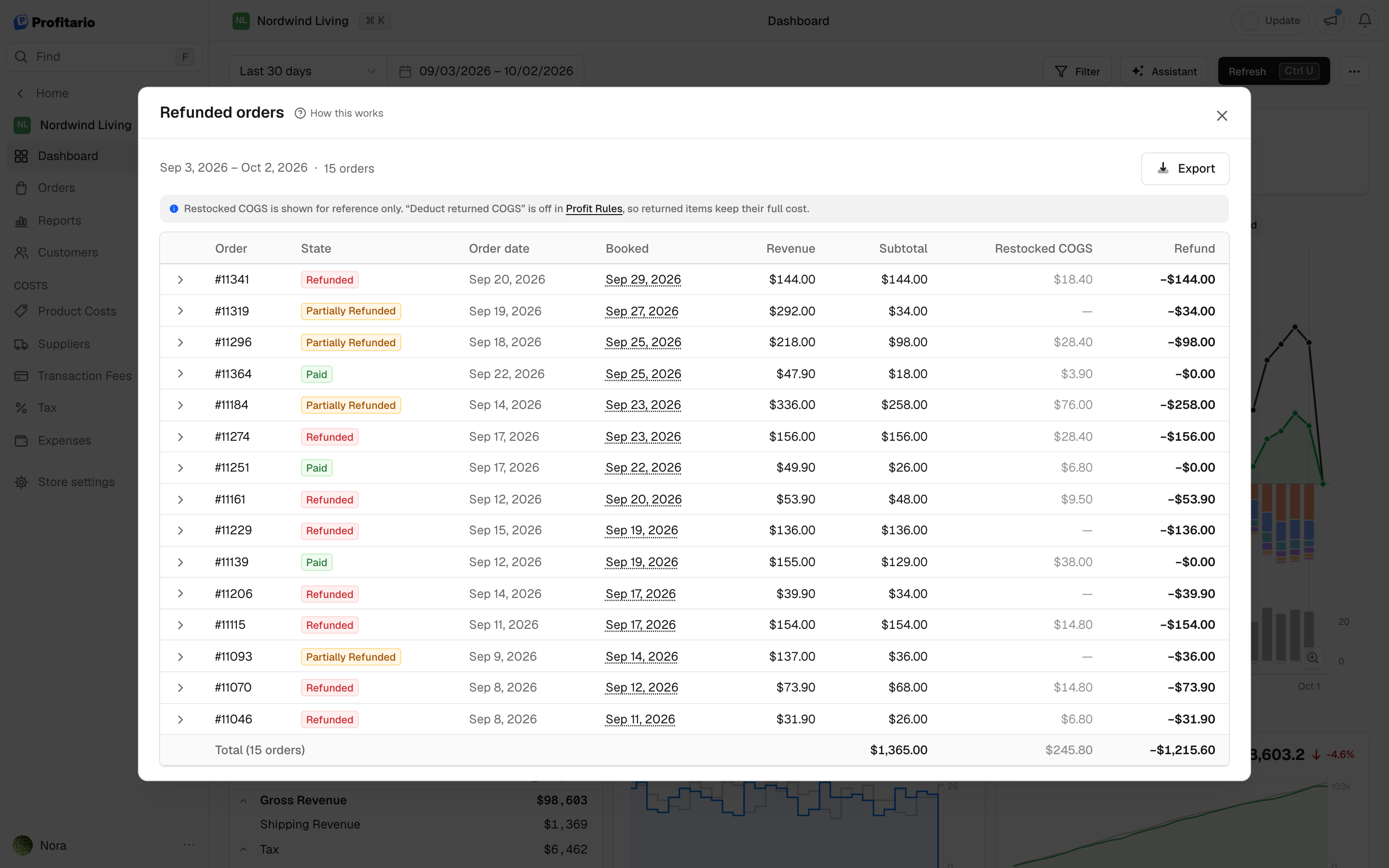
All columns in detail:
| Column | What it shows |
|---|---|
| Order | The order number. Click it to open the order. |
| State | The payment status of the order in Shopify, for example Paid, Partially Refunded or Refunded. |
| Order date | The day the order was placed. |
| Booked | The day the refund counts on in your reports. Click the date to see which setting decides it. |
| Revenue | The original order total. |
| Subtotal | The value of the returned items, before shipping and before any tax that is added on top. |
| Restocked COGS | The product cost of the returned items that went back into your stock. |
| Refund | The money that actually went back to the customer. |
COGS stands for cost of goods sold: what you paid for the products you sell.
Why an order can show Paid with a refund of 0.00. The return was already recorded and restocked in Shopify, but the refund payment has not completed yet. Payment providers often need a day to confirm a refund. Once it completes, the amount and the status update on their own. The same happens when you refund with store credit or swap an item in an exchange, because no money leaves through the payment provider.
Why Subtotal and Refund can differ. The refund can be lower than the value of the returned items (a partial refund or a restocking fee) or higher (refunded shipping or tax).
See Whether Restocked COGS Counts in Your Profit#
A notice above the table tells you how the Restocked COGS column is used. It depends on the Deduct returned COGS option in your Profit Rules.
| Deduct returned COGS | What the column means |
|---|---|
| On | The amount is added back to your profit, because the items are in your stock again and can be resold. |
| Off | The amount is shown for reference only and appears dimmed. Returned items keep their full cost. |
Click Profit Rules in the notice to change the option. In a dashboard view with several shops, each shop follows its own setting. The notice tells you when the shops differ.
On partially refunded orders, costs that were paid to a supplier through an integration, such as AliExpress or DSers, are not added back. A customer refund does not return that money to you.
Example. A customer returns an item that cost you 14.08 and you restock it. With the option on, your cost of goods sold drops by 14.08 and your profit rises by the same amount. With the option off, the 14.08 stays in your costs. The refunded money is deducted in full either way.
Correct Whether an Item Was Restocked#
Shopify records the restock choice when a refund is created (the Restock items box) and does not let you change it afterwards. If the box was ticked or left empty by mistake, or an item arrived back later, correct it in Profitario.
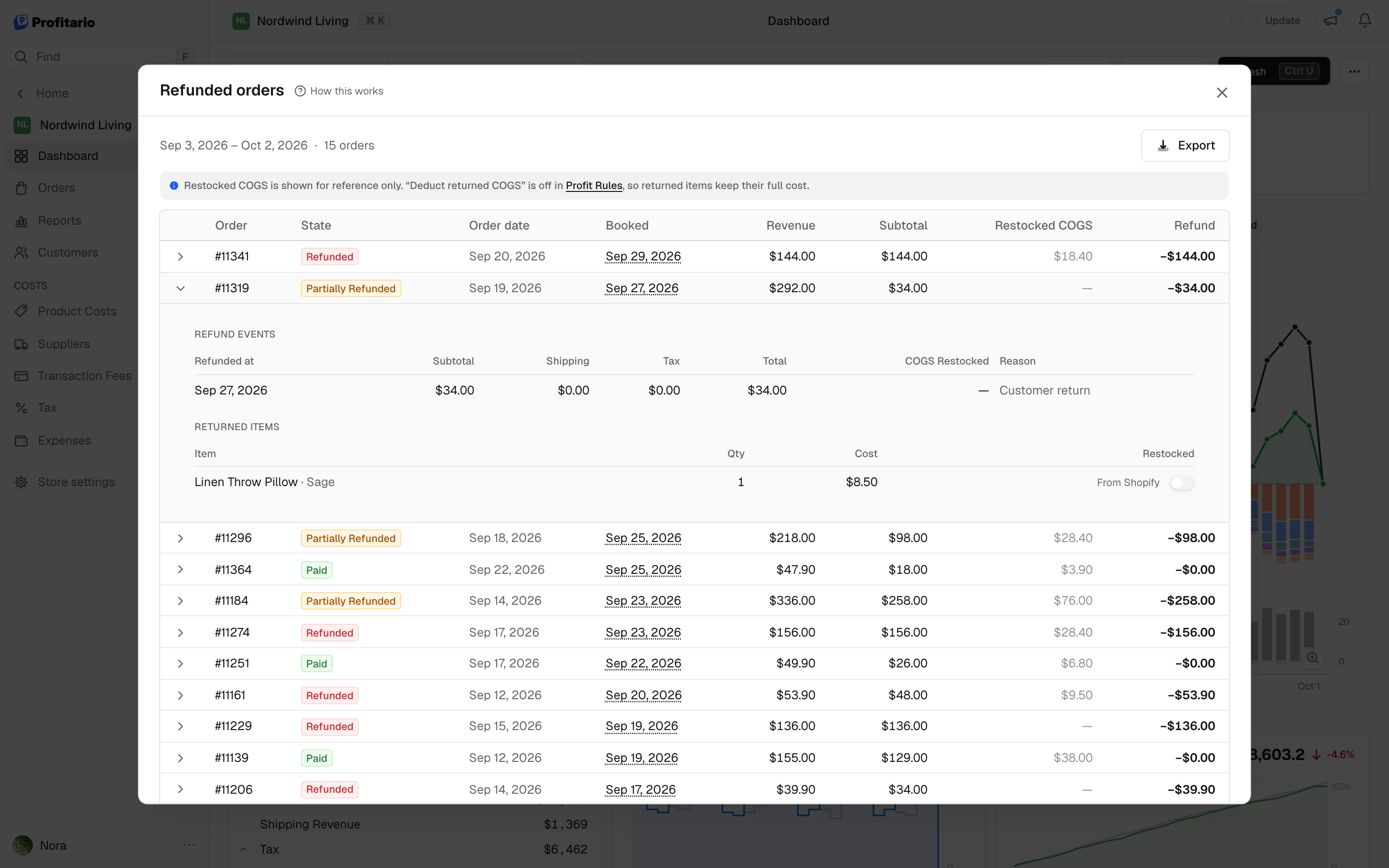
The item is now marked Set manually, and the Restocked COGS of the order and your dashboard update right away.
| Label | What it means |
|---|---|
| From Shopify | The switch shows the choice made in Shopify. |
| Set manually | You changed the switch in Profitario. Your choice stays, even when the order is synced. |
| Cancelled before shipping | The item was never sent, so it carried no cost and there is nothing to switch. |
Go back to the Shopify value. Click Reset next to Set manually. The switch returns to the choice made in Shopify.
The switch changes how Profitario counts the cost of the item. It does not change your inventory or the refund in Shopify.
The switch only changes your profit when Deduct returned COGS is on. With the option off, the Restocked COGS amount changes but your profit stays the same.
Häufige Fragen
War dieser Artikel hilfreich?